
Have you ever been excited to share the perfect shot, only to find it strangely zoomed in or awkwardly cropped once uploaded? You’ve definitely asked yourself, “Why does Instagram zoom in on my photos?” Is it a bug or a problem?
It’s frustrating and confusing, like, how can something that looks flawless on your phone suddenly lose its charm on Instagram? Behind the scenes, Instagram’s automatic cropping and formatting can turn your carefully composed images into something unrecognizable.
But don’t worry, you’re about to uncover the reason for the Instagram photo zoom issue, and more importantly, how to stop it from ruining your posts. Keep reading, because the solution might be simpler than you think!
The Reasons for Instagram Zoom in When Posting Pictures
At first glance, it may seem like Instagram arbitrarily crops or zooms in on your content. But in reality, there are a few specific technical reasons for the Instagram photo aspect ratio problem. Let’s explore the most common ones.
· Instagram Enforces Fixed Aspect Ratios
Instagram limits how images can appear in your feed. The supported formats are square (1:1), portrait (4:5), and landscape (1.91:1). If your image doesn’t match these formats, Instagram automatically crops or zooms it to fit the feed. This is where the Instagram aspect ratio becomes critical if you want to avoid losing key parts of your photo.
“I didn’t know Instagram forces photos into certain dimensions. My travel photos kept getting cropped until I started resizing them at 1080 × 1350 px.”
· Carousel Posts Apply a Single Format
When posting multiple photos in one post, Instagram uses the dimensions of the first image as the standard for all others. If your second or third image doesn’t match, Instagram will adjust it, often zooming in or cutting off edges. That’s a classic case of the Instagram photo crop issue, and it’s especially frustrating for creatives who plan their layouts carefully.
· Instagram Uses 1×1 Square Pics by Default
By design, Instagram uses 1×1 square pics as its default frame for many content types. Although the platform now supports other aspect ratios, the square format is still considered the most consistent. If your image doesn’t fit that ratio, Instagram photo zoom and crop may happen unexpectedly.
· Low-Quality Images & Compression
Every time you upload to Instagram, your photo is compressed to reduce load time and file size. While this keeps the app fast, it can alter how your content appears, especially if the original file was too large or too small. To avoid such problems, understanding Instagram compression and working around it is crucial.
· Portrait & Landscape Formatting Conflicts
Photos that are too tall or too wide may be forcefully adjusted during upload. If you’re trying to upload both vertical and horizontal images in one carousel, prepare for unexpected cropping. This is especially true for Instagram portrait and landscape photos with non-standard sizes.
· Data Saver May Interfere with Uploads
If you have Instagram’s data saver mode enabled, your images may be compressed even further or resized to use less mobile data. This setting sometimes causes the app to zoom in on parts of an image on Instagram, especially when uploading over slower networks.
· Image Resolution Affects Scaling
If your photo is uploaded in a low resolution, Instagram might stretch or enlarge it to fit its standard dimensions, which leads to Instagram photo zoom. Knowing the correct Instagram photo resolution helps maintain image integrity from phone to feed.
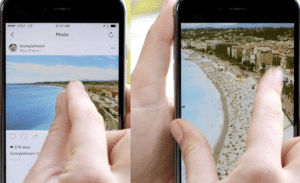
How To Stop Auto-Zoom on the Instagram App 2025?
Now that you understand the causes of the Instagram zoom photo issue, let’s talk about solutions. Whether you’re posting to your feed, Stories, or Reels, there are several easy ways to take control of how your images appear by resolving the Instagram auto zoom issue.
1. Resize Your Image Before Uploading
“Once I started using Canva templates for Instagram, the zooming issue completely stopped. Now all my posts look exactly the way I want.”
To avoid zooming, prepare your image using Instagram’s recommended sizes. According to the Instagram image size guide, these are the optimal and best image dimensions for Instagram:
| Format | Recommended Dimensions | Aspect Ratio |
|---|---|---|
| Square | 1080 × 1080 px | 1:1 |
| Portrait | 1080 × 1350 px | 4:5 |
| Landscape | 1080 × 566 px | 1.91:1 |
Using these dimensions ensures your image fits perfectly and prevents unwanted zooming. This practice minimizes formatting errors and is part of mastering Instagram portrait and landscape photo management.
Instagram has specific standards for aspect ratios, and images outside of these ratios may be cropped more than zoomed. For more details and ways to prevent cropping, be sure to check out the article “Why Does Instagram Crop My Photos”
2.Use Editing Apps to Adjust Size
Before uploading, use tools like Canva, InShot, or Kapwing to crop and format your image. These tools help you resize photos for Instagram with built-in templates that match Instagram’s exact aspect ratios.
Also, if a photo from someone else catches your eye and you want to save it for inspiration or later review, you can easily save it with the Litedownloader tools before uploading or sharing.
3. Use the “Expand” Button When Posting
When selecting a photo for your feed, tap the two-arrow expand icon in the bottom left corner. This stops the app from cropping your image and is a quick Instagram photo zoom fix you can apply in seconds.

4. Disable Data Saver Mode
Head to Settings > Account > Cellular Data Use and turn off the data saver. This ensures higher-quality uploads and reduces the chance of image scaling. Turning off Instagram’s data saver mode is one of the simplest tricks to keep your content looking sharp.
5. Turn Off Auto-Cropping with White Borders
Use apps that add white borders or padding to your image. These allow you to maintain your photo’s full frame while still fitting it into Instagram’s dimensions. This is especially helpful to avoid auto-crop on Instagram without affecting the main content of your photo.
6. Maintain Consistent Image Format in Carousels
If you’re posting a carousel, crop all images to the same dimensions before uploading. This will prevent Instagram from cropping photos inconsistently across slides, and also help to decrease Instagram photo zoom for each picture.
7. Choose High-Quality Source Images
The higher the image quality, the better the final result. Always try to upload high-quality images that Instagram can render without compression artifacts. Avoid screenshots or re-saved images with degraded resolution.
8. Pay Attention to Preview Changes
Always preview your post before hitting publish. If you notice the image has zoomed or shifted, go back and adjust it. This helps you fix Instagram image zoom issues before they go live.
9. Follow Pro Tips for Clean Uploads
One of the best Instagram photo upload tips is to edit your image in a photo editor first, save it at 1080px width, and upload using Wi-Fi. This gives you more control over quality and appearance to avoid the Instagram image zoom problem.

Summing-Up
If you’ve ever asked, “Why does Instagram zoom in on my photos?”, you now know the answer lies in formatting rules, data settings, and app behavior. But the power is in your hands for troubleshooting the Instagram photo zoom.
With a few small tweaks and some strategic prep, you can fully control how your images appear, without zoom, crop, or distortion. Don’t let Instagram’s auto-formatting ruin your content; optimize it the smart way.
Now it’s your turn; Have you ever had your image cropped or zoomed unexpectedly? Tell us what happened! Do you use specific tools to prepare your images before uploading? Share your favorites below.
FAQs
1.How do I get my entire picture to fit on Instagram?
Tap the expand icon (↔ or ⤢) when uploading to fit the whole photo within Instagram’s frame. Use photos with supported aspect ratios (1.91:1 to 4:5), or resize before posting using an editing app.
2.Why is Instagram zooming in when I post?
Instagram zooms in when your photo has an unsupported aspect ratio. It crops or fills the image to fit the standard post frame unless adjusted.
3.What is the perfect aspect ratio for Instagram?
Stick to these dimensions: Square (1080 × 1080 px), Portrait (1080 × 1350 px), Landscape (1080 × 566 px). These sizes align with Instagram’s support specifications and help preserve your image’s original look.
4.Why do carousel (multi-photo) posts often get cropped even more?
Instagram applies one aspect ratio across all images in a carousel. If one photo deviates, IG crops others to match. To avoid this glitchy look, pre-crop all images to a consistent ratio before uploading.
5.Does Instagram’s compression affect zooming or image quality?
Absolutely. IG compresses high-res photos and rescales them between (320–1080 px) wide. Overly large or small images may appear blurry or zoomed in after this process. Use high-resolution images and enable the “Upload at Highest Quality” option in settings if available.