
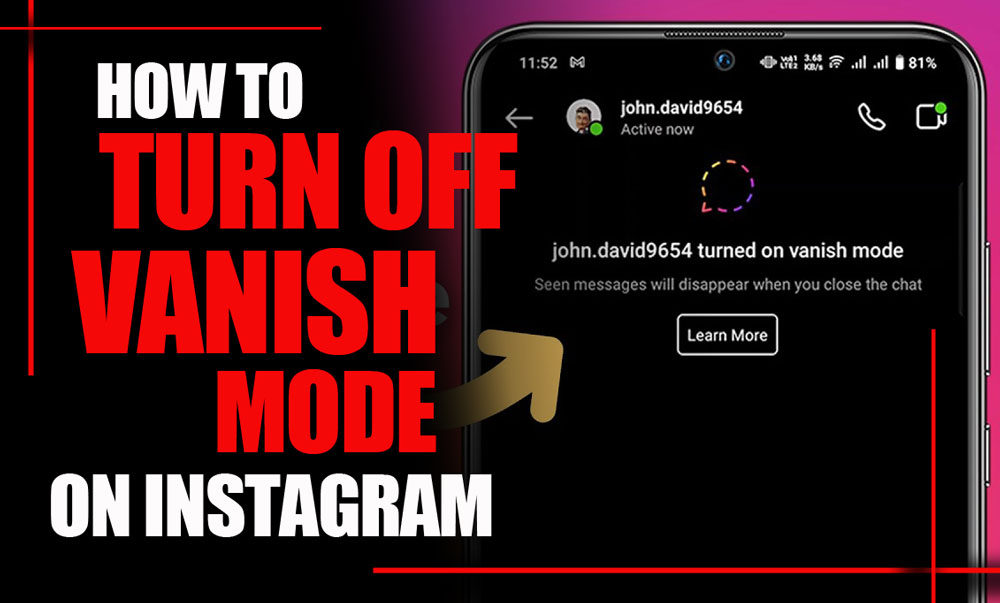
Have you ever had a deep conversation or received a flirty message on Instagram, only to see it vanish into thin air before you could read it twice? Like some kind of digital magic trick, gone without a trace? That’s the mystery behind turning off Vanish Mode on Instagram, a feature that makes your messages disappear after they’ve been seen.
The crazy part? Many users don’t even realize it’s been turned on… or how to switch it off! But here’s the real question: can someone secretly chat with you and erase all evidence, as if it never happened?
If that sparks your curiosity even a little, keep reading, because what you’re about to discover might just change the way you use Instagram forever.

What Is Vanish Mode on Instagram?
Vanish Mode is a privacy feature introduced by Instagram that allows users to send messages which automatically disappear after they’ve been read and the chat is closed. When activated, the entire conversation turns into a temporary messaging space.
This feature is one of several Instagram privacy features aimed at giving users more control over their communication. But sometimes, you may prefer your conversations to remain visible for future reference.
In that case, it’s important to know how to turn off Vanish Mode on Instagram and return your chat to a standard, non-disappearing format.
How Does Vanish Mode Work?
Here’s how Vanish Mode functions:
- It only works in one-on-one chats (not group messages).
- Once enabled, the background of the chat usually turns dark or displays visual cues indicating Vanish Mode is active.
- Messages sent in this mode (texts, photos, videos, etc.) disappear once the recipient sees them and exits the chat.
- If someone takes a screenshot while Vanish Mode is active, Instagram sends a notification to the other person.
- Either participant can enable or disable Vanish Mode at any time.
If you’re doubting how to disable vanish mode after enabling it for a temporary conversation, don’t worry, it’s simple and only takes a few steps.
Once you decide to turn off Vanish Mode on Instagram, any future messages in that chat will be preserved just like regular Instagram DMs.
Consider if you want to always have the photos or videos that were sent in Vanish Mode or that might disappear, you can use Litedownloader Content Downloader to save them directly to your computer or phone and create your own personal archive.
Why People Use Vanish Mode on Instagram?
There are several reasons why users might choose to use this feature, but if you’re here, you’re probably looking to turn off the Instagram Vanish Mode feature for one of these common reasons:
- Privacy and discretion: Some users prefer messages to self-destruct after being read, especially for temporary or sensitive conversations.
- Spontaneity: It’s useful for quick chats where nothing needs to be saved, like joking around or sending temporary info.
- Accidental activation: Vanish Mode can be triggered by an upward swipe in a chat, so it might be turned on by mistake.
- Professional use: For business or formal chats, users may want to keep a message history and thus opt to turn off this feature.
In many cases, people realize too late that Instagram DMs vanish mode was on during an important conversation, leading them to search for ways to prevent that from happening again.
If you want to know what happens when you take a screenshot of Vanish Mode messages, take a look at Does Instagram Notify When You Take a Screenshot for details on notifications and privacy.

How to Turn Off Vanish Mode on Instagram?
Whether you’re using an Android phone or an iPhone, the steps to disable Vanish Mode on Instagram are virtually the same. Here are the two main methods to do it:
Swipe Down in the Chat
- Open the Instagram app.
- Tap the Messages icon in the top-right corner of your feed.
- Open the specific chat where Vanish Mode is enabled (you’ll know by the dark background or a notification saying “Vanish Mode is on”).
- Place your finger at the bottom of the screen and swipe up, then release.
- You’ll see a message that says “Vanish Mode turned off,” and the chat will return to normal.
This is the fastest and most commonly used method to turn it off. Whether you’re switching back to regular messages or just ending a secret chat mode, this gesture makes it easy.
Use the Chat Settings
If swiping doesn’t work, or you’re having trouble, you can also turn off Vanish Mode on Instagram via the chat settings:
- Open the chat in question.
- Tap on the user’s name at the top of the screen.
- Scroll to find the Vanish Mode toggle.
- Tap the switch to turn it off.
Once disabled, all future messages in that chat will no longer disappear unless Vanish Mode is manually turned back on. These kinds of Instagram conversation settings help users customize how each chat functions.
- Note: Vanish Mode is chat-specific. If it’s enabled in multiple chats, you’ll need to turn it off individually for each one.

How to Turn on Instagram Vanish Mode?
As a point of comparison, here’s how you would turn it on again (just in case you want to test it out):
- Open a chat in your Instagram DMs.
- Swipe up from the bottom of the screen and hold.
- Release your finger when you see the “Vanish Mode” prompt.
- The background will change, and a message will confirm it’s been enabled.
When used intentionally, this is one of the most flexible Instagram chat features, giving you more control over temporary conversations.
Read more: Before your messages disappear in Vanish Mode, you can collect questions from followers with the Ask Me a Question sticker on Instagram and save the content or answers to manage your conversation.
Can’t Turn Off Vanish Mode on Instagram? (Troubleshooting)
Sometimes, even when you follow the steps correctly, Vanish Mode refuses to turn off. Here are common issues and how to fix them:
- Outdated App Version: If you’re using an older version of Instagram, the swipe feature or Vanish Mode toggle might not work correctly. Make sure you update the app to the latest version from the App Store or Google Play.
- App Glitch or Bug: If Vanish Mode is stuck, try these steps: Force close and reopen Instagram > Log out and log back in > Clear the app cache (on Android: Settings > Apps > Instagram > Storage > Clear Cache) > Restart your phone. These steps often fix issues when trying to switch vanish mode off Instagram across different devices.
- Network Issues: Poor internet connectivity might prevent the app from saving changes to chat settings. Make sure you’re connected to a stable network when turning off Vanish Mode.
- Permissions or Restrictions: In some rare cases, third-party security apps or parental control tools might interfere with Instagram’s features. Check if any such app is restricting your Instagram access.
- Report the Problem: If all else fails, use the in-app support. Go to your Instagram profile > Tap the three lines > Settings > Help > Report a Problem > Describe the issue clearly and include screenshots if possible. This is especially helpful if disappearing messages are still showing up despite disabling the feature.
Read more: Want to manage your messages without the stress of constant notifications? With Instagram Quiet Mode, you can take a digital break and stay focused, just like having complete control over disappearing messages in Vanish Mode.

In summary
Mastering how to turn off Vanish Mode on Instagram gives you full control over your chat history. Whether you want to preserve important messages, avoid accidental message loss, or just use Instagram normally, turning off this feature is quick and easy.
Remember, Vanish Mode is powerful, but only when you actually want messages to disappear. If that’s not your goal, keeping it turned off ensures you have a permanent, accessible history of your conversations.
Now, comment on us; have you accidentally activated Vanish Mode before? Which method worked best for turning it off? Did you run into any problems or bugs while using it? Would you like more guides like this for other Instagram features? Drop your feedback below or share this guide with a friend who might need it!
Will the other person be notified when I turn off Vanish Mode?
There’s no separate push notification, but the chat will show a system message like “You turned off Vanish Mode,” and the other person can see that message when they open the chat.
Why aren’t my messages disappearing even though I’m in Vanish Mode?
Vanish Mode only works in one‑on‑one chats (not groups). It works only if both people are in the supported version/region. In some areas, the feature is restricted. Messages sent before you turned Vanish Mode on will not disappear automatically.
Can someone screenshot or record messages in Vanish Mode?
Yes, if someone takes a screenshot while Vanish Mode is active, Instagram will notify the other person that a screenshot was taken. However, it cannot prevent someone from using an external device to capture the screen.
Does turning off Vanish Mode delete the messages that were sent while it was on?
Yes, once you exit Vanish Mode, the messages sent while it was active will disappear from the chat history for both participants.
Why can’t I enable or see Vanish Mode in my chat?
The feature isn’t available in your region or account type (some professional/business accounts don’t have it). The other person in the chat might have restrictions (like you haven’t chatted before) or one of you is using an outdated version of the app.