
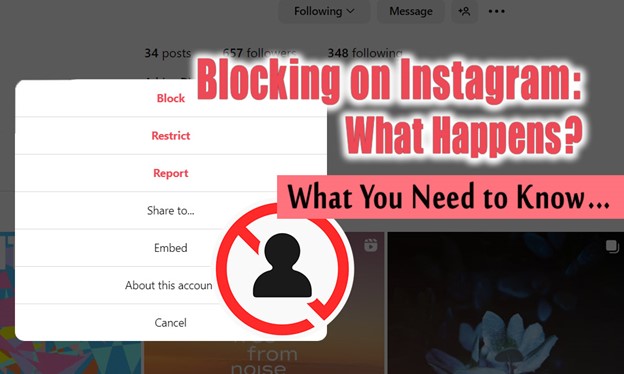
Picture that you’re enjoying your Instagram scroll, then suddenly, someone shows up who disrupts your peace, invades your space, or worse, harasses you. What do you do?
The answer is simple but powerful; knowing how to block on Instagram is like having a digital shield that instantly cuts off negativity and puts YOU back in control.
No more stress, no more unwanted drama, just a safe, clean feed where you set the rules. Actually, blocking isn’t just smart, it’s essential. Ready to protect your peace and own your Instagram? Let’s dive into the ultimate, foolproof blocking tutorial made just for you.
Why You Might Want to Block Someone on Instagram?
Sometimes, certain interactions on Instagram can make us feel uneasy or overwhelmed. Knowing when and why to block on Instagram empowers you to take control of your experience, ensuring your social media remains a positive space. Whether it’s spam, harassment, or simply wanting peace of mind, blocking can be your digital shield.
Social media can be a fantastic way to stay connected, but it can also expose you to unwanted attention or negativity. You might want to block someone because:
- They are spamming your DMs or comments.
- They’re harassing or bullying you online.
- You want to protect your privacy from certain individuals.
- You’re trying to move on from a past relationship.
- To keep your feed and notifications distraction-free.
Blocking on Instagram gives you control; once blocked, that user cannot see your posts, stories, or even find your profile easily.
Instagram Block vs. Restrict vs. Mute: What’s the Difference?
Understanding the differences between blocking, restricting, and muting on Instagram helps you choose the right tool for your needs. When you decide to block on Instagram, you cut off all contact, but sometimes a gentler approach, like restricting, might work better depending on your relationship with that person.
If you’re confused about the restrict vs block Instagram debate, knowing how these privacy options work helps you protect yourself while maintaining control over interactions.
Want to manage Instagram content safely while keeping control of your privacy? Try litedownloader, it’s fast, secure, and doesn’t require a login.
Instagram offers several privacy tools, but they differ significantly:
- Block: Completely cuts off all interaction. The blocked user cannot see your content or message you.
- Restrict: Keeps comments and messages but hides them from public view unless you approve. It’s a less confrontational option.
- Mute: Simply hides posts or stories from your feed without alerting the other person. You might want to mute an Instagram user if you want to avoid their content without cutting ties.

How to Block Someone on Instagram? (Step-by-Step)
Blocking on Instagram has never been easier, especially with the updated 2025 features designed for quick and discreet action. This Instagram blocking tutorial will guide you through the exact steps to block from any device or interaction point.
Whether it’s through a profile or DMs, these updated instructions reflect the latest methods for blocking on Instagram 2025.
From Someone’s Profile (Mobile)
- Open the Instagram app and visit the user’s profile.
- Tap the three dots (⋯) in the top-right corner.
- Select Block.
- Confirm your choice.
Via Direct Messages (DMs)
- Open the conversation with that user.
- Tap their name or the info icon at the top.
- Tap Block and confirm.
From Comments on Your Post
- Find their comment under your post.
- Tap their username to visit their profile.
- Use the three dots to block them.
Using Instagram Web/Desktop
- Log in on your browser.
- Visit the user’s profile page.
- Click the three dots near their username.
- Select Block and confirm.
How to Know If Someone Blocked You on Instagram?
If you suspect someone blocked you, it’s important to know the telltale signs so you can stop guessing. Recognizing these signs is part of mastering the block on Instagram and staying aware of your Instagram security settings.
This helps you understand when your presence has been removed and protects your own privacy better. Doubting if you’ve been blocked? Try these:
- Search their username; if it disappears, it’s possible to block.
- Check your DMs, chat may still appear, but the profile won’t open.
- Look through your followers/following list.
- Visit their profile from another account.
- Try tagging or mentioning them.
- Access their profile URL directly.
Remember, Instagram doesn’t notify users when they’re blocked, but these signs often reveal the truth.
Sometimes you might not be blocked; it’s just Instagram’s system adjusting what you see. The Instagram Algorithm 2025 has become more advanced, deciding what content appears first in your feed based on your activity and relationships.
What Happens When You Block Someone on Instagram?
When you use the block feature Instagram provides, you are leveraging one of the most powerful Instagram harassment tools available. It instantly stops unwanted users from viewing your content, sending messages, or interacting with your profile in any way, offering a strong layer of protection within Instagram’s ecosystem.
Once block on Instagram:
- They can’t see your posts, stories, or profile.
- They can’t send you messages or tag you.
- Their likes/comments might disappear.
- They won’t be notified directly.
- Instagram blocks its other accounts linked by the same person.
- Excessive blocking may lead to temporary action blocks by Instagram.
How to Block Instagram on All Devices? (Parental Controls & More)
Sometimes, blocking a single user isn’t enough; you might want to completely restrict access using device or network-level controls.
Using the advanced privacy settings Instagram offers, along with third-party apps, you can effectively hide your profile on Instagram or even block the entire app on certain devices to protect your space.
- Use “Canopy” or similar parental control apps for comprehensive device-level blocking.
- On Android, use Digital Wellbeing or app restrictions.
- On iOS, use Screen Time/Downtime features to restrict Instagram.
- On computers, modify host files or router settings to block Instagram at the network level.
These methods go beyond Instagram’s internal block feature, ideal for parents or users wanting complete device control.
How to Unblock Someone on Instagram?
Sometimes, you might reconsider and want to reverse a block. The process of blocking on Instagram naturally includes knowing how to unblock safely and smoothly without losing control over your privacy.
To unblock:
- Go to your profile > Settings > Privacy > Blocked accounts.
- Find the user and tap Unblock.
- Confirm, and they regain access (unless you restrict or mute).
Unblocking doesn’t automatically restore your follow status; you must follow them again manually.
Instagram Blocking Limits & Rules (2025)
Instagram has rules about blocking to prevent abuse and ensure fair use of the platform. Understanding how to manage these limits helps you avoid penalties while effectively using Instagram privacy features to keep your account safe without risking being flagged for suspicious activity.
Is there a limit for Block on Instagram? The app hasn’t confirmed, but user reports suggest:
- You can block thousands, but mass blocking can cause glitches or temporary bans.
- Avoid blocking too many accounts in a short time to prevent restrictions.
- Instagram’s algorithms monitor suspicious activity and may limit your ability temporarily.
Sometimes, Instagram’s automated systems can misunderstand frequent blocking or reporting as unusual activity. If your Instagram account gets disabled for no reason, don’t panic. And learn why it happens and how to fix it with this detailed guide.
Advanced Tips for Safe Instagram Blocking
When it comes to maintaining a healthy online environment, you can combine blocking with other strategies to better manage your Instagram followers and keep harmful accounts at bay.
Effective use of Instagram harassment tools alongside the block option enhances your control over who sees and interacts with your content.
- Use “block other accounts” to stop multiple spam accounts.
- Report abusive users when blocking for better enforcement.
- Maintain strong privacy settings and 2FA to secure your account.
- Avoid overusing Block to prevent Instagram flags.
- Stay informed of updates, Instagram’s features evolve constantly.
Staying safe on Instagram isn’t just about blocking; it’s also about understanding how hackers target users. Learn more in our full guide on how Instagram accounts get hacked and what you can do to protect yours.

Final Thoughts
Nowadays, digital wellbeing is key, and knowing how to block on Instagram is one of the most powerful tools you have. Use blocking wisely to protect yourself and your peace of mind, and remember to combine it with other Instagram privacy features and reporting options to maintain a safe, positive social media space.
Knowing when to block, restrict, or report someone is an essential skill. Now you have the most comprehensive guide to keep your Instagram experience secure and stress-free.
How about you?! Have you blocked someone on Instagram before? Or have you ever felt someone blocked you, and how did you know? Got questions about blocking or privacy? Ask me anything below!
Can I block someone without them knowing?
Yes. Instagram does not notify users when they are blocked.
What happens when I block someone on Instagram?
They can’t view your profile, posts, stories, or send DMs. Their previous likes/comments stay but are hidden from you.
Can a blocked person still see my old messages?
Yes, in shared DMs. But they can’t message you or see updates. You can delete the chat to remove it from your inbox.
Is it possible to block someone who isn’t following me?
Yes. You can block any public or private profile on Instagram, even if they’re not following you or you have never interacted with them.
Can I block multiple accounts from the same person?
Yes. In 2025, Instagram will allow you to block all existing and future accounts they create using the “Block [User] and other accounts they may have or create” option.